
Ошибка Nginx 405 Not Allowed


Nginx выдает ошибку 405 Not Allowed, если для доступа к файлам используется запрещенный или неподдерживаемый метод. В большинстве случаев это POST, который в Nginx запрещен для доступа к статическим файлам.
Для решения проблемы можно использовать один из двух подходов.
Обход ограничения
В простейшем случае можно заставить веб-сервер думать, что все хорошо, просто перенаправляя ошибку дальше:
# Передает ошибку 405 как код 200 на нужный адрес
А если Nginx работает как прокси, скажем, для Apache, то можно схитрить так:
# Перенаправляет запрос на proxy
Когда используется FastCGI
Если в Nginx используется модуль FastCGI, то в некоторых случаях веб-сервер может некорректно воспринимать скрипты, которые вызываются методом POST. Для этого запрашиваемый URL разбивается на адрес самого скрипта и запрашиваемых параметров:
#Директива fastcgi_split_path_info определяет формат скрипта и параметры разделения
Как исправить ошибку доступа к базе 1045 Access denied for user
Как перезапустить nginx после обновления конфигурации
Включение и использование log-файлов для проверки работы Nginx
Уменьшение размера картинок при сохранении качества
Как и зачем используется заголовок Cache-control
Что такое Etag и как его настроить в Nginx
301 redirect в Nginx’e
Причины и методы исправления ошибки Gateway Timeout, Nginx
И как правильно работать с длительными соединениями в MySQL
Как настроить Nginx на максимальную эффективность
Как использовать try_files в настройках Nginx’a
Основы оптимизации работы Web сервера
Где находится nginx.conf и пример настроек
Архитектурные принципы высоконагруженных приложений
Работа приложения с несколькими бэкендами при помощи Nginx
Как пофиксить ошибку «110: connection timed out» while reading response header from upstream
Что значит и как это починить
Как исправить ошибку Primary script unknown в Nginx
Причины возникновения ошибки Ошибка 502 bad gateway в Nginx и методы исправления
Использование Nginx, как кэширующего сервера
Примеры применения Javascript в Nginx’e
Как решить ошибку upstream sent too big header while reading response header from upstream в Nginx
Ошибка HTTP 413 (Request Entity Too Large Error) означает, что клиент отправил слишком большой запрос на сервер.
Как улучшить время получения первого байта и отзывчивость веб-сервера
POST запрос не разрешен-405 не разрешен-nginx, даже с включенными заголовками
у меня есть проблема в попытке сделать запрос POST в моем приложении, и я много искал, но я не нашел решения.
Итак, у меня есть приложение nodeJS и веб-сайт, и я пытаюсь сделать запрос POST, используя форму с этого сайта, но я всегда заканчиваю в этом:
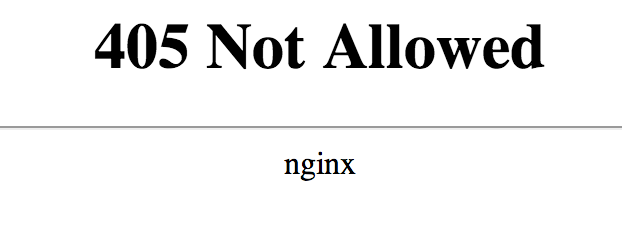
и в консоли я вижу :
вот в этой строке кода :
Я прочитал много сообщений и документацию кросс-домена, но это не сработало. источник исследования 1:http://enable-cors.org/server.html источник исследования 2:http://www.w3.org/TR/2013/CR-cors-20130129/#http-access-control-max-age
что я сейчас делаю:
Я пытаюсь опубликовать из другого домена моего сервера:
POST ЗАПРОС : http://name.github.io/APP-example/file.html, репозиторий github
СООБЩЕНИЕ СЛУШАТЕЛЯ :»http://xxx.xxx.x.xx:9000/email, сервера localhost (x-> my ip address)
Итак, у меня была такая же проблема в других файлах, но я это исправил, поставив этот код в начало каждого маршрута:
теперь у меня такая же проблема, но в этом файле единственная разница в том, что я имею дело с SMTP и электронные письма, поэтому я отправляю электронное письмо и отправляю электронное письмо на это письмо, которое я получил в запросе POST.
код работает совершенно нормально с почтальоном, поэтому, когда я тестирую с почтальоном, он работает, и я могу опубликовать.
я включил этот код ниже вместо первого, который я показал, но он не работал:
Как исправить ошибку 405 Method Not Allowed на WordPress-сайте
В этой статье мы объясним, что такое ошибка 405 и как она может проявляться. А также расскажем, как исправить эту ошибку, возникающую на WordPress-сайте.
Что означает ошибка 405 Method Not Allowed
Ошибка 405 Method Not Allowed возникает, когда браузер запросил доступ к одной из страниц сайта, но веб-сервер отклонил определенный в запросе HTTP-метод. Получается, что браузер не может получить доступ к запрашиваемой странице. Вместо интересующего пользователей конвента они увидят страницу с ошибкой.
Google Chrome

Ошибка 405 Not Allowed в Chrome
Safari

Ошибка 405 Not Allowed в Safari
Firefox

Ошибка 405 Not Allowed в Firefox
Microsoft Edge

Ошибка 405 Not Allowed в Microsoft Edge
Ошибку 405 не следует путать с кодом ответа 404 Not Found. Он означает, что запрошенный URL-адрес не найден или введен неправильно. Сообщение об ошибке 405 подтверждает, что запрашиваемая страница, но для выполнения запроса использовался неподдерживаемый HTTP-метод.
Это код ответа HTTP указывает, что метод запроса известен серверу, но не поддерживается целевым ресурсом.
Вариации ошибки 405
Вот некоторые варианты отображения ошибки:
Как исправить ошибку 405 Method Not Allowed на WordPress-сайте
Проверьте, правильно ли вы ввели URL-адрес
Самой распространенной причиной возникновения ошибки 405 является неправильный URL-адрес. Большинство веб-серверов блокируют доступ пользователей к несуществующим страницам сайта.
Откат недавно установленных обновлений WordPress
Если вы обновили WordPress незадолго до того, как стало появляться сообщение об ошибке 405 Method Not Allowed, то именно обновление может являться причиной возникновения проблем. Это также относится к любым плагинам и темам оформления, которые вы недавно обновили.
Удалите новые плагины и темы оформления
Плагины и темы оформления могут создавать проблемы. Это связано с тем, что добавление любой функциональности на сайт влияет на его работу. Ошибка 405 быть связана с плагином или темой оформления, которую вы используете. А также если конкретное расширение конфликтует с другой частью CMS.
Удаления определенных плагинов или тем оформления может устранить ошибку 405 Method Not Allowed. Для этого перейдите в раздел «Плагины» панели администрирования WordPress.

Страница плагинов в WordPress
После удаления каждого плагина не забудьте проверять, устранена ли возникшая ошибка. Этот процесс позволит вам точно определить, какой плагин вызывает проблему.

Как деактивировать плагин в WordPress
После проверки плагинов можно приступить к деактивации (удалению) используемой темы.
Проверить любые непреднамеренные изменения в базе данных
Рассмотренный выше способ не гарантирует, что изменения, внесенные расширениями, будут полностью отменены. Это особенно актуально для WordPress-плагинов. Многие из них могут изменять записи в базе данных, которые влияют на работоспособность WordPress.
Если вы уверены, что плагин или тема оформления являются причиной возникновения ошибки 405 Method Not Allowed, проверка используемой базы данных полностью решит проблему. Для этого необходимо открыть базу данных сайта и вручную просмотреть таблицы и записи, измененные расширением.
Проверка конфигурации сервера
Ваш сайт, скорее всего, работает на сервере, который использует Apache или Nginx. На их основе базируется более 80% всех серверов. Проверка файлов конфигурации сервера на наличие неподдерживаемых инструкций поможет решить причину возникновения ошибки 405.
Вот простой пример правила RewriteRule, которое сопоставляет все входящие запросы и отвечает кодом ошибки 405 Method Not Allowed

Пример правила RewriteRule
Просмотрите журналы сервера
Почти каждое веб-приложение хранит журналы на стороне сервера. Они содержат полную историю операций, совершенных приложением.
Журналы сервера немного отличаются. Они часто предоставляют подробную информацию о состоянии всех подключенных служб или даже только самого сервера.
Чтобы просмотреть логи сервера, вам нужно подключиться к вашему сайту через протокол защищенной передачи файлов (SFTP). В корневом каталоге найдите папку logs. В ней находятся журналы доступа и журналы ошибок WordPress:
Теперь просмотрите журналы и проверьте все записи, которые выглядят странно.
Отладка кода приложения или скриптов
Если ни один из предыдущих методов не помог, тогда проблема связана с пользовательским кодом. Для ее решения нужно провести отладку кода.
Для этого нужно скопировать весь сайт на промежуточный сайт. После этого можно будет провести пошаговую процедуру отладки.
Что делать, если ни одно из этих решений не помогло
Если ни один из перечисленных методов не помог, то возникла более сложная проблема. В этом случае стоит обратиться к вашему хостинг-провайдеру.
Заключение
К счастью, в большинстве случаев ошибку 405 Method Not Allowed можно легко исправить с помощью быстрой отладки.
Пожалуйста, оставляйте свои комментарии по текущей теме материала. Мы очень благодарим вас за ваши комментарии, лайки, дизлайки, отклики, подписки!
How to Fix the 405 Method Not Allowed Error on Your WordPress Site

If someone comes across an error page on your site, there’s a good chance they’ll get annoyed and leave. This can result in plenty of lost engagement and sales. One particularly common error to be aware of is the “405 Method Not Allowed” message.
This error can be tricky to navigate, as it indicates that something has gone wrong without telling you why it occurred. Fortunately, with a little effort and patience, you can be back up and running before long.
In this post, we’ll explain what a 405 error is and show you the different ways it can appear. We’ll then talk you through some of the ways you can fix this error on your WordPress site. Let’s get to it!
What the 405 Method Not Allowed Error Is
When you manage a website, it’s almost guaranteed that you’ll run into some kind of common issue eventually. Websites go down, links break, and pages load a little too slowly. Although these occurrences are common, leaving them unattended is likely to result in a poor user experience.
Unfortunately, some problems are more difficult to fix than others. Consider the 405 Method Not Allowed error message, for example. This is an HTTP response status indicating that a web browser has requested access to one of your site’s pages.
In this scenario, your web server has received and recognized the request, but has rejected the specific HTTP method it’s using. In practical terms, this means that the browser can’t access the page it requested. Your site’s visitors will see an error page, rather than the content they were looking for:
Google Chrome
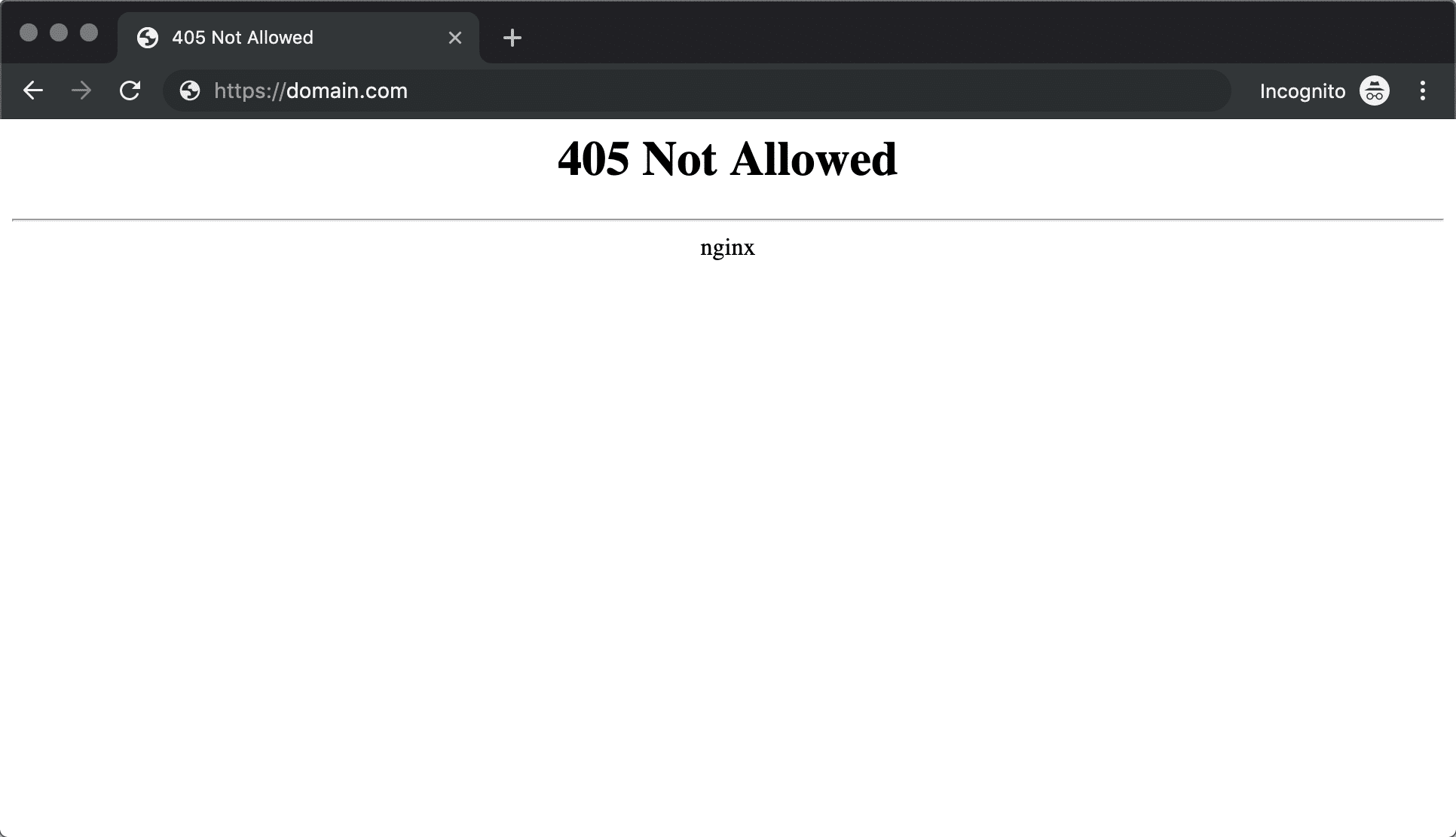
405 Not Allowed Error Nginx in Chrome
Safari
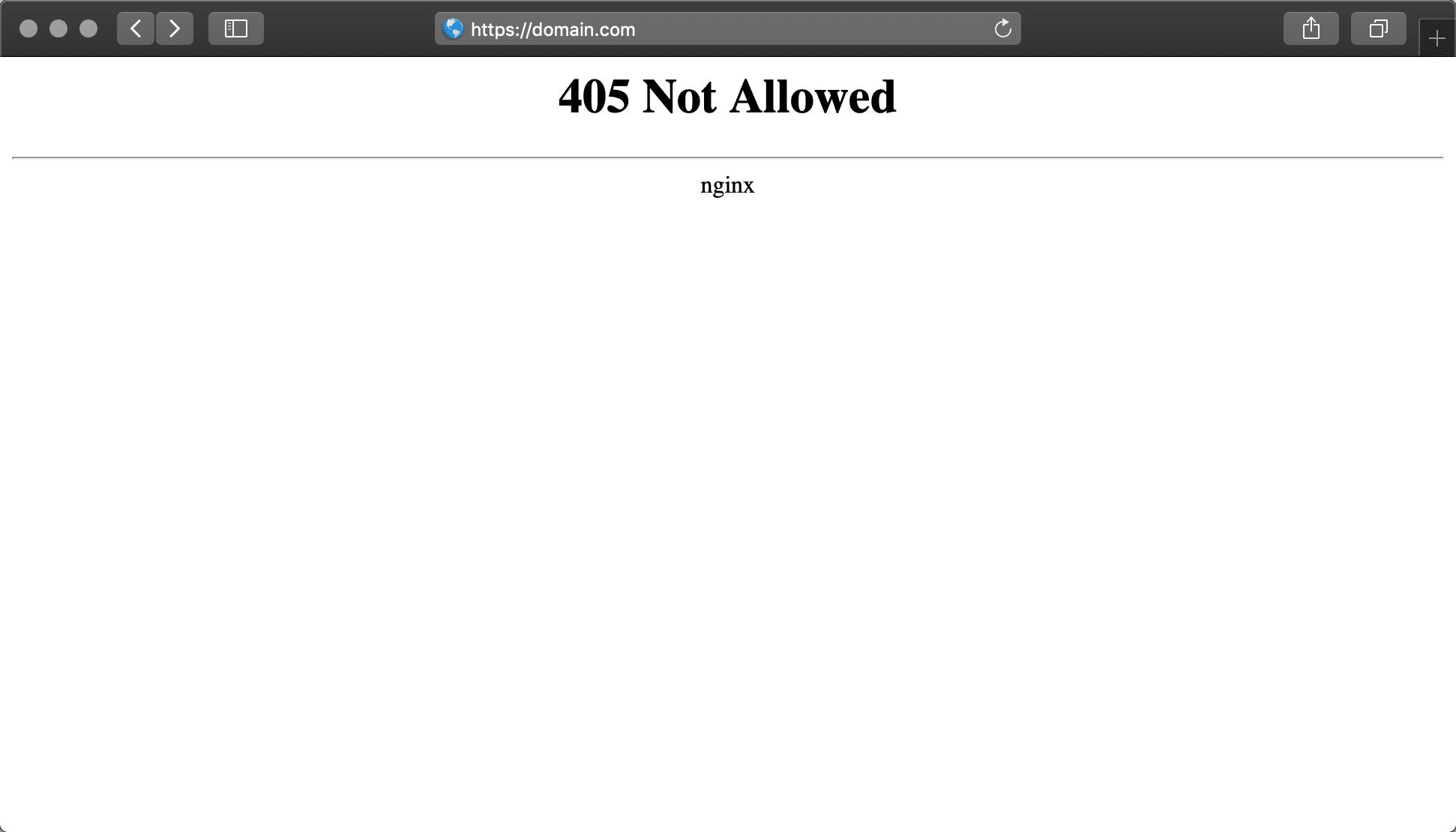
405 Not Allowed Error Nginx in Safari
Firefox
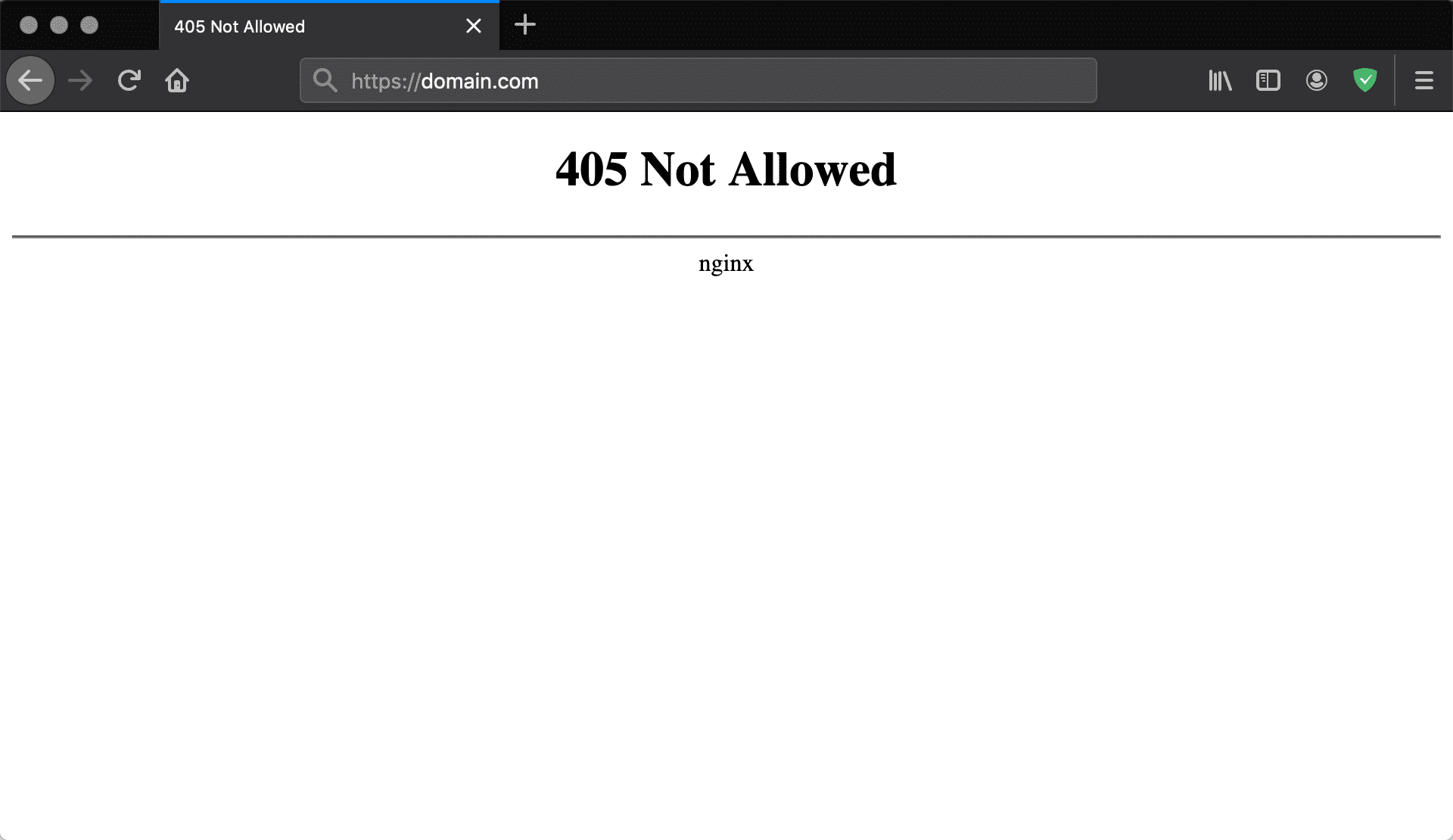
405 Not Allowed Error Nginx in Firefox
Microsoft Edge
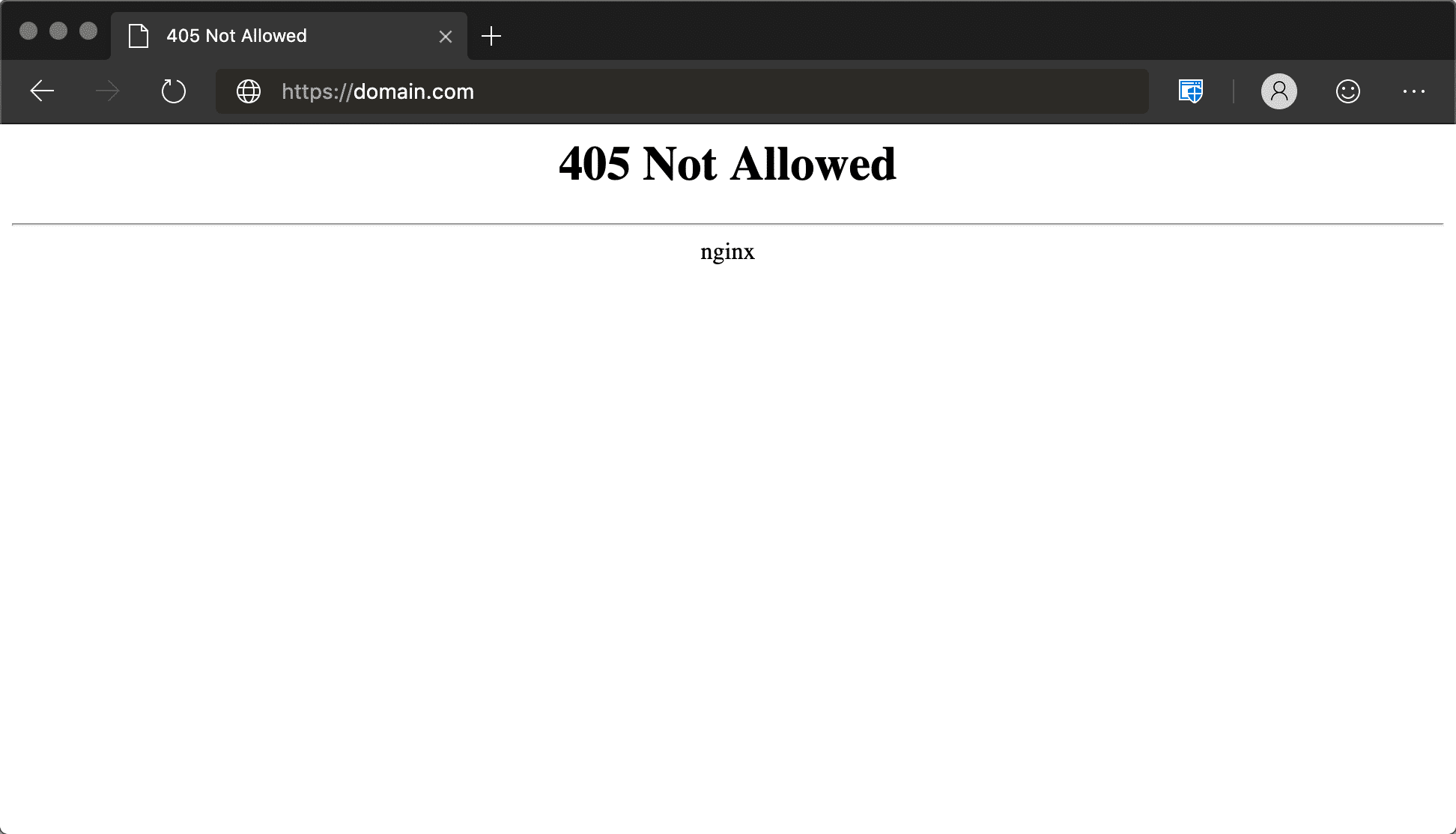
405 Not Allowed Error Nginx in Microsoft Edge
The 405 Method Not Allowed error shouldn’t be confused with the 404 Not Found error. A 404 tells you that the requested URL couldn’t be found or that it was entered incorrectly. A 405 error message, on the other hand, confirms that the requested page does exist (and the URL was input correctly), but an unacceptable HTTP method was used to make the initial request.
405 Method Not Allowed (Short Definition):
The 405 Method Not Allowed error occurs when the web server is configured in a way that does not allow you to perform a specific action for a particular URL. It’s an HTTP response status code that indicates that the request method is known by the server but is not supported by the target resource.
Variations on the 405 Method Not Allowed Error
Although the 405 error message most commonly appears in the form we showed above, various web servers, operating systems, and browsers can present it in numerous ways. The actual cause of the issue is also likely to differ slightly from server to server, which can affect the way the error appears.
Here are just a few of the many different variations you might run across:
Regardless of how they appear, the trouble with 405 errors is that they can be difficult to solve. This is because they let you know that something has gone wrong, but they don’t tell you what the cause of the problem is. In most cases, it’s up to you to find the root cause and repair it if possible.
How to fix the 405 Method Not Allowed Error on Your WordPress Site (7 Possible Solutions)
Before we start discussing the possible solutions, you’ll want to create a backup of your site. This will give you something to fall back on if you make a mistake. Many web hosting providers include regular site backups as a part of their plans. If you have a hosting plan here at Kinsta, creating a backup is simple.
Sign Up For the Newsletter
Want to know how we increased our traffic over 1000%?
Join 20,000+ others who get our weekly newsletter with insider WordPress tips!
Once that’s out of the way, it’s time to begin the troubleshooting process. The methods we’ve outlined below are organized from most likely to fix the problem to least likely, so start from the top and work your way down to achieve the best results.
Without further ado, let’s get started with one of the easier steps on our list.
1. Check to See If You’ve Input the Correct URL
It may sound a little too simple but the most common cause of a 405 Method Not Allowed error is entering the wrong URL. Most web servers are tightly secured and designed to disallow access to improper URLs to prevent users from visiting the wrong pages (or trying to access pages that don’t exist).
Before going any further, therefore, double-check to ensure that you’ve entered the URL of the site you wish to visit correctly. It’s easier than you might think to make mistakes – such as forgetting a letter or misspelling a word. You may also find that simply refreshing the page could prompt it to load correctly.
2. Roll Back Any Recent WordPress Updates
Updates are wonderful things. They typically bring a wealth of exciting new features and can help to fix any ongoing bugs and patch security holes. However, despite their good intentions, updates can occasionally cause some issues.
If you updated WordPress just before the 405 Method Not Allowed error message started to appear, the new code could be the root of the problem. This also applies to any extensions or themes you may have recently upgraded – although we’ll focus more on that aspect in the next section.
If you feel that an update might be at fault, it’s worth reverting back to the previous version of WordPress. As we’ve already touched on, make sure you have a full site backup ready before doing this – you don’t want to make any irreversible changes.
While you can do this manually, the easiest way to roll back WordPress updates is to use a plugin. There are many available options, although WP Downgrade is particularly effective. This plugin will largely automate the process, meaning that you’re less likely to make mistakes.
Having a tool like this in your arsenal also means that you can prevent similar issues from happening in the future. Of course, if rolling back the latest update doesn’t fix the problem, remember to re-update your site or restore your backup.
Minimize the potential for error with one unified management dashboard and site backups made simple (and accessible). Try Kinsta for Free.
3. Uninstall New Plugins and Themes
Plugins are an essential part of any WordPress website. They enable you to add a wealth of new features, and can even automate more complex processes. Themes are equally as important. Without them, you’d need a lot of complex coding (or an expensive developer) to create an aesthetically-pleasing site.
Unfortunately, just as with software updates, these extensions can sometimes create problems. This is because adding functionality to your site on any level completely changes the way it operates. There may be an issue with the plugin or theme you’re using, or a specific extension might conflict with another part of your site (or even your WordPress version).
As a result, you may find that uninstalling certain plugins or themes could help to fix the 405 Method Not Allowed error. To begin this process, you’ll need to navigate to the Plugins section of your WordPress dashboard. On this page, you should be able to see a complete list of all the plugins you have installed:
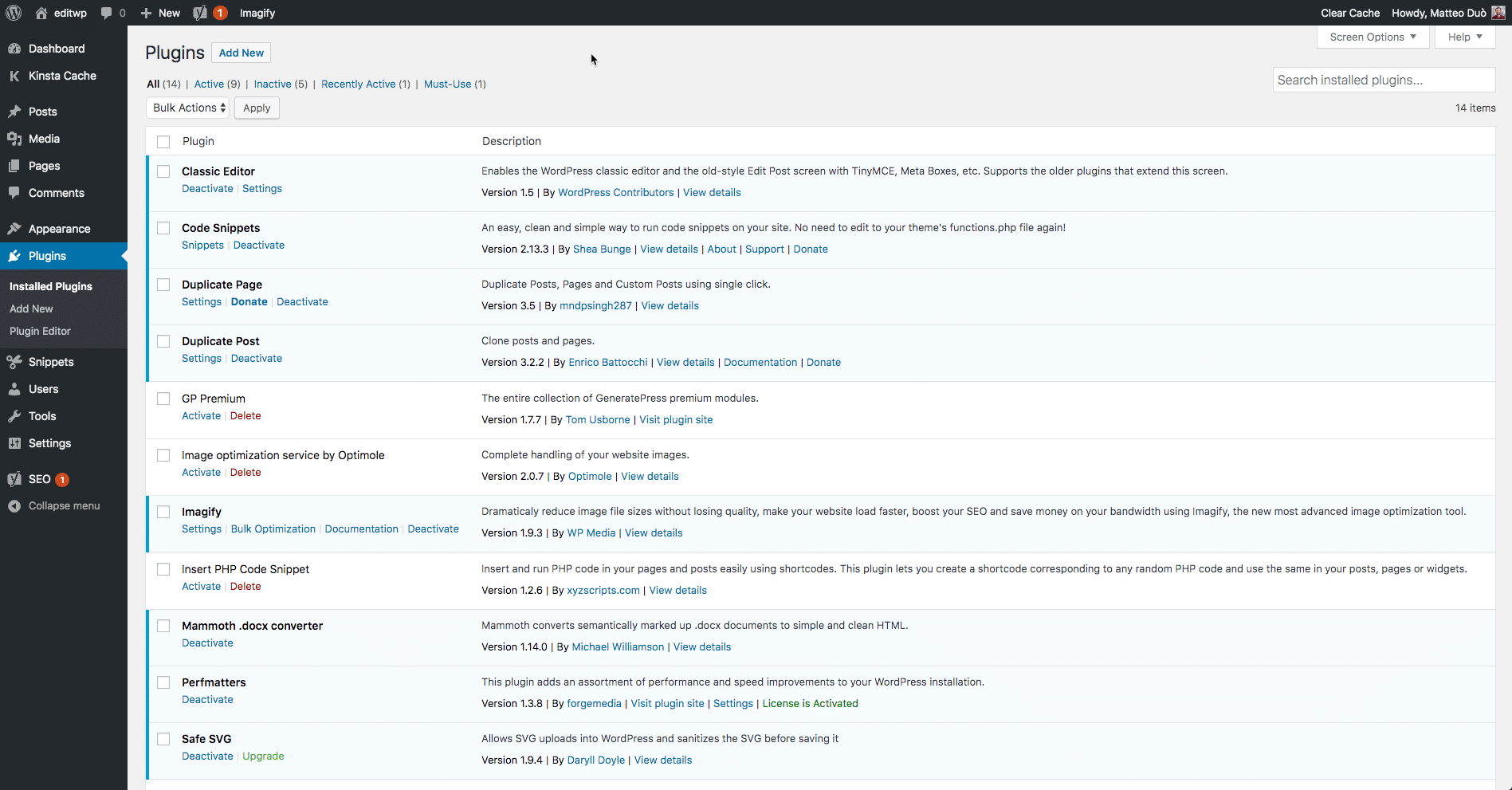
Plugins page in WordPress
From here, you can begin to uninstall your plugins one at a time. After uninstalling each one, check your website to see if the error has been resolved. This process may take some time to complete, but it will enable you to pinpoint exactly which plugin is causing the problem (if any of them are at fault):

How to deactivate a WordPress plugin
Once you’ve checked over your plugins, you can repeat this process with your active theme. If your theme or one of your plugins turns out to be the issue, you’ll want to either contact the developers, remove the plugin or theme, or look for a replacement. Here’s our guide on how to install a new WordPress theme.
4. Check for Any Unexpected Database Changes
Although the above step should resolve any plugin- or theme-related issues, it doesn’t guarantee that all changes made by your extensions have been fully reverted. This is especially true for many WordPress plugins. They are often given complete access to your database as soon as you hit Install, meaning that their changes go deeper than you might initially think.
Unless the developer explicitly codes against it, a plugin may be able to modify database records that don’t “belong” to it but are instead managed by WordPress itself. In this scenario, the plugin may not know how to revert those alterations to database records, so it will ignore them during the uninstallation process.
Diagnosing this particular problem can be difficult, but if you still suspect that a plugin or theme is the cause of the 405 Method Not Allowed error, checking your database directly is your best course of action. To do that, you’ll need to open your site’s database, and manually look through the tables and records modified by the extension. If you’re not sure what to look for, getting in touch with your developer is a smart idea at this point (as well as for the remaining steps on this list).
5. Confirm Your Server’s Configuration
Your website likely runs on a server that uses one of the two most popular server software options – Apache or Nginx. In fact, together they power 84% of the world’s web servers. Checking your web server software’s configuration files for any unintentional handling instructions may help to determine the root cause of the 405 Method Not Allowed error.
When your application is on a shared host, you’ll likely have a username associated with your particular account. If that’s the case, the application root directory can typically be found by following this path:
To better demonstrate this, here is a simple RewriteRule that matches all incoming requests to https://kinsta.com and responds with a 405 Method Not Allowed error code:

Example of the RewriteRule
Remember, if you’re a client at Kinsta, we use Nginx servers, not Apache. You can reach out to our support team if you think something might be wrong with your Nginx config.
6. Look Through the Server-Side Logs
Nearly every web application keeps some kind of server-side logs. Application logs usually comprise the complete history of everything the software has done – from the pages it’s requested, to the database results it provides.
Server logs are slightly different, as they’re related to the actual hardware that runs the application. They will often provide details about the health and status of all connected services, or even just the server itself.
To find your WordPress server logs, you’ll want to connect to your site via Secure File Transfer Protocol (SFTP). In the root directory, you will see a folder called logs. Within this folder are your access logs, and your WordPress error logs. They should look a little something like this:
From there, you can begin to follow a similar process to that outlined in the previous step. Look through the logs and take note of anything that looks out of place (or ask your developer to do so). You can also refer to the codex for additional debugging information in WordPress.
7. Debug Your Application Code or Scripts
If none of the previous steps have done the trick, it may be a sign that there’s an issue with some custom code in your WordPress installation. The only way of determining whether this is the cause of the 405 Method Not Allowed error is to debug it.
Ideally, you’ll want to make a copy of the entire installation to an online or local development area – such as a staging site. From there, you can begin to conduct a step-by-step debugging process, which will vary depending on your site and its attached software.
Unfortunately, there’s no quick fix here. You’ll have to be prepared to put in the time to comb each section of your site for anything that looks out of place. Remember, however, that a fully-operational site is worth the hassle.
What to Do if None of These Solutions Work
If you’re still reading, it probably means that the solutions we’ve outlined above still haven’t fixed the 405 Method Not Allowed error. This is usually an indication that a more complex issue has occurred, and is unlikely to be something you can fix personally unless you’re a seasoned developer.
In this scenario, the best thing you can do is often to contact your hosting provider directly. You should have access to 24/7 customer support through a live chat or ticketing service. You may also be able to reach out to your host via email or phone, although opting for live chat is likely to offer a faster solution.
Summary
No matter how carefully-optimized your website might be, it’s nearly inevitable that you’ll encounter at least one error message at some point. It’s important to resolve the issue quickly when this happens, to keep visitors interested in your site. Fortunately, although the 405 Method Not Allowed error can be confusing, it’s often possible to fix it with a little troubleshooting.
Let’s recap the seven methods you can try in order to fix a 405 error on your WordPress site:
Do you have any further questions about the 405 Method Not Allowed error? Or is there another commonly-encountered error message you’d like us to cover? Let us know in the comments section below!
Save time, costs and maximize site performance with:
All of that and much more, in one plan with no long-term contracts, assisted migrations, and a 30-day-money-back-guarantee. Check out our plans or talk to sales to find the plan that’s right for you.